
 This is the first article in a series about our vacation in Alaska. To see the introductory article in the series, click here.
Our 3:30 pm departure allowed us to start on a very leisurely note. Jim and Shirley drove down from their home in the Sierra foothills, and we left for SFO right after lunch. Everything was happily uneventful with the minor exception that I was designated for a “SPD” (Standard Pat Down) after my trip through the millimeter-wave imaging machine. No problem.
The flight was on Continental Airlines, which, despite having been acquired by United last year, seems to still operate as an independent airline in some respects and not others. This flight was “operated by Continental” and had a United flight number on a code-share basis. I booked seats, all five of us in the same row in the premium Coach section, because the reservation system saw that I was a Premier flier on United. I later got a confusing email message from them about a change of flight numbers, so I reconfirmed the seats, only to be told that I was not entitled to premium seating on Continental. But when we got to the airport, we were assigned our original, premium, seats. I have learned to expect the unexpected when code-sharing is involved.
The beginning of the flight was clear, with an unusually great view of the mountains in Washington. I was happy to see that United (Continental?) allows use of GPS receivers in flight, so we could identify some of the mountains. When it clouded up later, we could see better where we were and how much time remained.
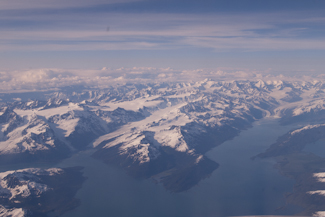
It cleared up again as we approached Anchorage, and gave us a great preview of things to come: glaciers and mountains along the Gulf of Alaska. We landed and picked up our transportation for the week, a Toyota Sienna van that was just the right size for the five of us and our luggage. We stayed at the Marriott in downtown Anchorage.
 It was about this time that we began to experience the unusual length of daylight in the Alaskan summer. We decided to walk a few blocks to dinner, and had a great light dinner at a local place called the Snow Goose. I tried one of the local microbrews, Sleeping Lady amber ale, and it was excellent. Alaska, or at least Anchorage, seems to have a well-developed beer culture judging from the number of brewpubs we saw. It’s apparently something that can carry on through the Alaskan winter. We also got our first tastes of Alaskan smoked salmon…..mmmm!
 After last year’s very enjoyable cruise in the Galápagos Islands, we thought hard about doing another cruise this year. But we also wanted to go to Alaska, and we felt that it took more of a land experience to do that properly. Having looked at a number of options, we decided to do a two-week self-guided driving tour, starting and ending in Anchorage. We booked the trip through a tour operator, All Alaska Tours, primarily to save the hassle of making all of the hotel bookings ourselves (although this helped in other ways as well). This year, in addition to my wife Kenna and daughter Celeste, Kenna’s parents, Jim and Shirley, joined us for the trip.
Table of Contents
- Alaska Day 1: San Francisco to Anchorage
- Alaska Day 2: Anchorage to Copper Center
- Alaska Day 3: Copper Center to Kennecott
- Alaska Day 4: Kennecott and McCarthy
- Alaska Day 5: Kennecott to Valdez
- Alaska Day 6: Valdez and Mears Glacier Cruise
- Alaska Day 7: Valdez to Black Rapids
- Alaska Day 8: Black Rapids to Fairbanks
- Alaska Day 9: Fairbanks to Denali
- Alaska Day 10: Denali National Park
- Alaska Day 11: Denali to Knik River
- Alaska Day 12: Knik River to Seward
- Alaska Day 13: Exit Glacier and Seward
- Alaska Day 14: Seward to Anchorage
- Alaska Day 15: Anchorage to San Francisco
While not as exotic as last year’s trip, we have had a considerable number of people ask us about the trip, both before and afterwards. I kept a daily journal of the trip, and as I did last year, I plan on blogging the entries from my journal on a time-delayed basis. Entries will be posted three weeks after they occurred, beginning tomorrow, July 8, with the summary of our arrival in Anchorage on June 17. I hope you enjoy them.
We’re in the process of buying a new car and trading in our 9 year-old Volvo. As someone who typically buys new cars, and not all that often, I haven’t paid a lot of attention to CARFAX. Perhaps I should have.
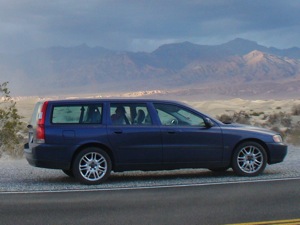
The Volvo (in Death Valley)
I took the Volvo down to the dealer to get an appraisal of trade-in value. They asked a lot of questions about how it was equipped, if I was the original owner, and so forth. One question I had a small problem with was whether it had been in an accident. Several years ago, we were rear-ended very lightly by a car that was unregistered and uninsured. Normally I would just have taken the other driver’s name and insurance information and otherwise ignored this, but I felt it was my civic responsibility to get this uninsured driver off the road. We called the Highway Patrol and waited until they arrived and took a report and dismissed us. The unregistered car was towed away.
Since a police report was taken, I also called my insurance company and reported the accident. They said that I was covered under my uninsured driver coverage, so I had the damage appraised and accepted a payment of a few hundred dollars for the damage, which was entirely cosmetic and hardly visible. The appraiser even said that one of the door dings was more serious.
So the car has been in an accident.
The salesman returned to me with the CARFAX report, saying, “Bad news.” He showed me the report; it had amazing detail on some things, like the maintenance history. It showed every time we took the car for scheduled maintenance at the dealer, and that we had done so regularly. But this was all negated by one fact: The car has been in an accident. The dealer said that as a result they would not be able to sell the car and would have to wholesale it, which lowered the trade-in value considerably. I feel like I’m being penalized for doing the right thing several years ago.
Now that I understand how this works, I’m going to think twice about reporting minor accidents. I’m also going to raise the deductible on my insurance policy, because the cost (in resale value) of a small insurance claim is potentially quite a bit higher than insurance would pay.
If I was more of a conspiracy theorist, I would probably say that CARFAX is conspiring with the insurance industry to discourage insurance claims. I have heard similar comments about the effect of homeowner’s insurance claims on the resale value of one’s home. I’m not going to attribute this to a conspiracy, but it’s good to know how this works and adjust my behavior accordingly. CARFAX would offer a considerably better service if it would report the assessed value of the damage or do something to provide finer granularity beyond, “The car has been in an accident.”

The "Old World"
While I was off skiing a few weeks ago, one of my colleagues at work sent me an email asking whether it would be OK to schedule a meeting about something. Using my smartphone, I sent a message saying, “Sure, please send me a meeting invitation on Outlook” [like many companies, we use Microsoft Exchange for meeting scheduling, and my coworkers have access to my free/busy status]. But I asked myself: was this interaction necessary?
In many circles, it is now the norm to send an instant message to ask a colleague if they’re free before calling them on the phone. Someone that I communicate with primarily using Skype once commented that he considered it rude for someone with instant messaging capability (such as that in Skype) to call him without messaging him first.
This all prompts me to ask whether we’re using all this technology correctly, or whether we are creating unnecessarily complicated social protocols around the technology. Around the time I entered the work force, the procedure for contacting someone might go like this:
- Look up phone number, dial phone
-
- If busy, wait 10 minutes and retry
-
- If no answer, wait an hour and retry
-
- If secretary or office-mate answers, leave message
- Otherwise, talk with called party
These days, it might look like this:
- 1. Look up IM address, check presence
-
- If IM presence info is unavailable, look up phone number and jump to step 2.
-
- If presence says “Away”, “Busy”, or “Do Not Disturb” and it’s not an emergency, wait 10 minutes and retry
-
- Send a short IM to see if callee is available for a phone call and ask for phone number to use
- 2. Dial phone
-
- If voicemail answers, leave message. If you looked up the number in Step 1, decide whether to try again with a different contact number.
- 3. Otherwise, talk with called party.
And this is for an informal meeting; for a more formal meeting, perhaps with a superior, it’s somewhat the norm to start with an email exchange to explain the reason for the meeting, then to send a calendar invitation for a phone call at some point in the future, and then to place the call at the appointed time. It’s as though we feel compelled to use every bit of technology at our disposal.
Part of this is a symptom of the pervasive scheduling of our society. When I was young, I’d go knock on a neighbor’s door to see if their kids were available to play. These days, play dates are set up well in advance and little is left to chance. This is probably necessary because our kids are much busier than we ever were.
I’m not sure whether it’s more or less efficient to communicate these days. Given the advances in technology, are we just putting up social barriers to easy communication?

New LED Flood Light
Not quite two years ago, I published a blog post on some experiences we had with LED floodlights. In summary, the lights we tried had a few problems, and were suitable for use in some places but not all. Technology is moving quickly in this area, so I thought I’d give it another try.
One of the motivations to try LED flood lights again is our dissatisfaction with compact fluorescent flood lights (CFLs). This includes:
- CFLs start up very slowly, typically taking a couple of minutes to get to full brightness when they are cold.
- Even though CFLs are dimmable, the range of dimming is very limited.
- We had a sense that the UV output of the CFLs was causing artwork to fade more quickly, although we don’t have any data to support that.
With our previous experience with LED floodlights in mind, I looked around for what appeared to be a good alternative. I chose a dimmable R30 flood light bulb that featured a frosted glass front, which seemed most likely to give good dispersion of the light output. I chose the warm white color. The two bulbs I ordered arrived quickly, a happy improvement from the months of delays I endured three years ago.
Although we haven’t lived with the new bulbs very long, my early impression is very good. In particular:
- The illumination pattern appears to be very similar to that of incandescent flood lights. CFLs, by the way, seem to be a little bit broader.
- The color appears to be quite similar to that of tungsten lights. Unfortuantely, I don’t have any way to compare the UV output of the lights with incandescent lights or CFLs.
- These LED floods dim well. One difference you might expect is that while incandescent lights get yellower as they dim, LEDs stay about the same color.
- I’m not noticing the flicker on these lights I did on the earlier-generation LED flood lights. Perhaps the phosphors have improved.
There is one current disadvantage to LED flood lights. They are expensive. Unless you have deep pockets, plan to use these only in a few places, probably where you have the lights on a fair amount of the time to take maximum advantage of the energy savings. Fortunately, they have a long life (rated for 30,000 hours, as compared with 2500 hours for a typical incandescent) so you won’t have to change them very often, if at all.
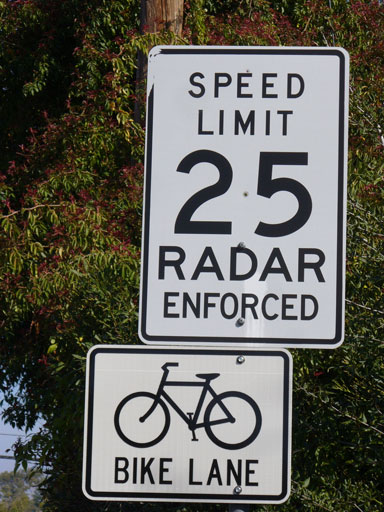
Typical Speed Sign
California, car haven that it is, has long placed restrictions on the use of use of radar for enforcement of speed restrictions. One of these restrictions is a prohibition on the use of radar in what are defined as speed traps (California Vehicle Code sections 40800-40808). With exceptions that include local streets and school zones, if the speed limit is not justified by an engineering and traffic survey, it is presumed that the speed limit might have been set artificially low, creating a speed trap, and evidence from radar and similar electronic measurement means is not admissible in speeding cases. In most cases, this justification requires that the 85th percentile speed (the speed that 85% of the cars drive at or slower than) can be no more than 5 miles per hour over the speed limit.
This came to my attention recently when I was reading a draft of the Los Altos Collector Traffic Calming Plan [19 MB PDF]. An Existing Conditions map on page 5 of that plan shows the current posted speeds and 85th percentile speeds for the collector streets (smaller than arterials, but larger than neighborhood streets). None of the streets shown had 85th percentile speeds that were within 5 mph of the posted speeds. The 85th percentile speeds ranged from 7 to as much as 14 mph over the posted speed. Presumably this means that radar evidence cannot be used in traffic court. Nevertheless, speed signs like that shown are common, proclaiming radar enforcement where it can’t be used.
I’m not saying this to advertise that it’s safe to speed in Los Altos. Please don’t; we want everyone to be safe and the traffic calming measures that are being proposed are onerous enough as it is. Of course, the reason for putting up Radar Enforced signs is to provide extra encouragement to drivers to slow down. Obviously this isn’t working in Los Altos, as evidenced by these measured speeds. If radar enforcement cannot legally be done, posting Radar Enforced signs is just diluting their effectiveness. These signs are so common that people just don’t see them any more; they might as well not be there.

Is this sign less true?
Suppose there was this (Photoshopped) speed limit sign instead. Obviously, they’re not going to put this sign up; they’re not going to torture anyone. But on the other hand they’re not going to use radar either. Is it more harmful to put an obvious false statement on a sign or a falsehood that is more plausible? The latter may be cause the greater harm, if one discounts the possibility that drivers swerve upon seeing the “Violators Tortured” sign.
I would like to see a requirement that Radar Enforced signs only appear where it is actually legal to use radar. Drivers will start to notice them if they aren’t as numerous and actually mean something. Cities would also have an additional incentive to set reasonable speed limits for the driving conditions.
[Updated 3/15/13 with correct link and title to Collector Traffic Calming Plan]
[updated 8/13/15 with re-corrected link and correct PDF size]
[updated 10/16/20 with correct link to California Vehicle Code]
 As I mentioned last year, I annually upgrade my home Linux machine to the latest version of Fedora around the first of the year. The real motivation is to stay on a release that is receiving updates (particularly security fixes) and to pick up a few new features here and there. This year the upgrade was from Fedora 12 to Fedora 14. Since I benefited from many others’ blog posts and other material online, I want to return the favor and describe my experiences, in the hopes that someone else may run into some of the same issues.
Preparing for the upgrade
The end of the year is also a good time for a backup snapshot of my system, which I stored on my network-attached storage device. I also made backups of both the MySQL and PostgreSQL databases just to make sure that there wouldn’t be database problems as a result of the upgrade (as happened with PostgreSQL last year). I also read, or at least skimmed, the release notes for both Fedora 13 and 14 to know what to expect.
The upgrade process itself
Downloading the upgrade was, as usual, very smooth. I downloaded the complete DVD .iso file using BitTorrent, which I keep running from time to time to provide the image to others. I made a DVD+R of the image, and also loaded it onto a share on my network-attached storage device in case I had problems booting the image as I did last year.
Since I was prepared, of course the image booted smoothly. Running off the upgrade DVD, I was able to tell it to upgrade my system from Fedora 12. The upgrade reported that there were several hundred “packages” (software components) that would be upgraded. I left and did some other chores while the upgrade happened.
Some time later, I returned to find that the upgrade had failed about halfway through. Nice touch, Fedora people, to have a blue background when that happened. I tried rebooting the target system, which seemed not to work. So I retested the upgrade DVD, and started the upgrade anew. It seemed to pick up where it left off. Woot!
Graphics
When the upgrade had completed, I booted the system normally and it seemed to almost come up. Recalling last year’s challenged with my Nvidia graphics board, I hit <ctrl><alt>F2 to get to a non-graphics TTY, and the system was indeed up.
Here is where I did my first consultation with the Internet. After trying to patch things together with the custom Nvidia driver as I did with Fedora 12, I read that my graphics board is now supported with the open-source ‘nouveau’ driver that I had disabled last year. So I reenabled the nouveau driver, but still no X11 graphics.
More searching for relevant hints revealed that the display configuration file, /etc/X11/xorg.conf, might be incorrect. This made sense because it was referencing the proprietary Nvidia driver. Using the instructions found here, I created and installed a new xorg.conf.
Dovecot
One of the first things I needed was to be able to receive mail. Dovecot was running, but I use SSL for the IMAP connections from my mail clients, and I got an error indicating that the certificate being presented was incorrect. To make a long story short, it turned out that the Dovecot configuration files had been extensively reorganized between Fedora 12 and 14. The files were broken up into a directory (/etc/dovecot/conf.d) of configuration files. Fortunately the monolithic configuration file I had been using had been saved as dovecot.conf.rpmnew, so I was able to edit my changes into the new-format config files. Presumably this was in the release notes somewhere, but I hadn’t seen it.
One other thing that’s slightly odd is that now the daily Logwatch process is reporting all of my disconnects from Dovecot. No big deal, but these messages are routine and probably don’t need to be reported.
Package confusion
One thing I found very quickly was that I was getting a tremendous number of error messages whenever doing anything with the yum package update manager. One thing that seemed particularly curious was that it seemed to want to install Fedora 12 versions of things, and wasn’t upgrading any of the installed packages. When I used yum to list a package, it would show both the Fedora 12 and Fedora versions of the package as installed. Apparently something bad had happened when the upgrade bombed out. I went to bed thinking that it was probably time to install from scratch because piling annual upgrade on top of annual upgrade had finally caught up with me. But this would be a lot of work.
I woke up about 3 am and couldn’t sleep, so I got up and decided to give it one last try. Apologies for not taking good notes (it was 3 am!) but I looked at yum to try to figure out why it thought I was still on Fedora 12. Some posts suggested that I hardcode the release version in /etc/yum.conf, but I found that it uses a particular package, fedora-release, to set $releasever, and there were two copies of fedora-release (one for Fedora 12 and one for Fedora 14) installed. I got rid of the Fedora 12 fedora-release, and yum started acting like I was really on Fedora 14.
There were still hundreds of packages that showed up as “double installed” (both the Fedora 12 and 14 versions installed, resulting in an error). While I could perhaps have deleted the Fedora 12 packages, I decided to be conservative and ‘yum reinstall’ the packages instead. This removed the Fedora 12 version and made sure that the Fedora 14 version was correct. This had to be done in just a certain order to make sure that the filed that had dependencies were reinstalled before the things that they depended on. This was a very time-consuming process, and took several hours to complete. While the great majority of these were simple duplicateions, there were a few cases where conflicts were created by packages that had been renamed, and a couple of old packages (from Fedora 8 ) that just needed to be deleted.
Python
Python was upgraded to version 2.6, which meant that a couple of non-standard libraries needed to be copied over into /usr/lib/python2.6/site-packages. No big deal.
Java
With the upgrade to Firefox 3.6, the Java plugin no longer seemed to work. I downloaded the latest Java from Sun Oracle and tried setting up the symbolic links to point to the JVM plugin that I had installed. I wasn’t entirely sure where this link went (/usr/lib/mozilla? /usr/lib/firefox-3.6?) so I tried a number of things and no luck. Fortunately I have this great resource called the Internet to help.
I found this article (thanks, Rob Holland, whoever you are) that describes how to use the ‘alternatives’ system to configure the choice of Java and plugin to use. This is the first time I remember encountering or using alternatives. In any case, the instructions worked perfectly (with the appropriate change in Java version number) and everything started working. Hello, weather radar animations!
Summary
Overall, with the exception of the unexpected crash during the upgrade process and the resulting package confusion, everything went as well as can be expected. Having upgraded all the way from Fedora Core 2 to Fedora 14, I keep wondering how long I can keep this streak alive before I need to start with a fresh Fedora installation. But this wasn’t the year. Whew.

Not a Firesheep
I’m surprised that Firesheep hasn’t been a bigger deal. For those of you that aren’t familiar with it, Firesheep is a Firefox add-on that was released this past October that makes it easy to harvest other users’ cookies from network you share. These “cookies” are little bits of data that are stored in your browser that, among other things, allow a website you visit to recognize you when you return. This allows whoever is doing the collecting to impersonate the user whose cookies were collected, a practice referred to as “sidejacking”.
The biggest threat posed by sidejacking is on open wireless networks, like those you may use in your favorite coffee shop. Even if the network directs you to a special page to log in or accept its terms, your traffic is sent unencrypted, which allows anyone in range to intercept your traffic. (Networks that use access controls like WPA and WEP do encrypt their traffic individually for each user, and do not have this problem.) Sidejacking isn’t a new problem, but the Firesheep tool makes it much easier to accomplish, and therefore of more concern.
I can think of three ways to defend against this attack:
- Use an encrypted wireless network
- Use https: (TLS/SSL) for all web connections
- Use a VPN
Public access points typically don’t use encryption because one has to know the password (secret) for the network to make the initial connection. Without a password, there’s no way to connect to the network. I hear that the wireless networking vendors are working on new protocols for public-access networks to use encryption, but in the meanwhile we’ll be using unencrypted networks in public places for a long time.
TLS (Transport-layer Security) or SSL (Secure Sockets Layer), which is used when you see https: and the lock logo on your browser, is great when you can get it. There are tools such as browser extensions for forcing the use of TLS on Web connections, but many websites don’t support TLS at all. Even so, not everything happens through your browser: many people use separate applications for email and instant messaging.
On mobile devices, there is a strong trend toward using special-purpose applications in place of using the web browser for everything. Most of these applications give no indication whether they’re using TLS or not, even though many use Web protocols (and cookies).
Many corporate users are given VPN capabilities to access their corporate networks from outside, and I recommend using those capabilities whenever using a public network, even if it’s just to access Facebook (assuming, of course, that the corporate network gives access to Facebook). But what to do on one’s personal device?
Noticing that my iPhone, iPad, and Mac all have VPN capabilities built in, I decided to figure out what can be done with that. After a little investigation, I found out that there are commercial services like WiTopia (and probably a lot of others) that provide termination for tunnels from users.
I opted instead to set up my own VPN endpoint, using the virtual private server I have been using for a few things. The story of how that’s done is a lot more detailed, and I’ll save that for another blog post in the near future. Stay tuned.
My advice is to be very careful when using open, public wireless networks because you never know who’s listening. If you’re using them much at all, strongly consider setting up a VPN. This is also yet one more reason that your home wireless network should be secured.
One of the services offered by my bank is customizable email and SMS notifications. The idea is to alert the customer to potential fraud when something infrequent or unexpected happens with their account. I think this is a great idea, so I signed up for a number of alerts.
I flew to Europe yesterday for a business trip. When I arrived in Amsterdam, I visited one of the ATM machines at the airport to obtain some Euros. This was about 11 am local time on a weekday. This morning at 6:43 am, I received an SMS and an email message from the bank, because the ATM withdrawal had triggered one of these notifications. That’s right, the notification occurred almost 20 hours after the event.
Time is of the essence for many notifications like this one. If a fraudulent transaction is detected quickly, there might be a possibility of finding the culprit(s) before they move on. Had the transaction been fraudulent, I would have canceled my ATM card right away. But in 20 hours, there is plenty of opportunity for the culprit to make more withdrawals. I’m aware of the daily withdrawal limit, but in this case there was an additional day available in which to withdraw from my account.
Why the delay? I don’t know. I wonder if, rather than triggering the messages right away, there is perhaps a daily cron job or something that does the notifications. I received a delayed notification several months ago, and the message was sent at a different time of day, so perhaps there is a different explanation. In any case, my bank needs to get those notifications out right away when a notifiable event occurs. I’ll see if there is a way to tell them that, but I’m not expecting them to make it easy to communicate with them directly.
One other issue: The notification email contained five hyperlinks, mostly to the bank’s home page URL. This isn’t helpful at all, and it is a best practice for banks and other financial institutions not to use any hyperlinks in their email. This in order to avoid training customers to click on links in email messages. Companies that are plagued by phishing attempts, including most banks, should know that already.
It doen’t rise to the level to cause me to take my business elsewhere, but if I accumulate enough stories about this bank, I’m walking. I have done that before.
Following the iPad debut a few months ago, I talked with friends who had them, played with them in the local Apple Store, and decided that while it is a nice device I didn’t have a very compelling case to get one. I formed the opinion that the iPad is all about the consumption of content created elsewhere, and while I like consuming content, I want to be challenging myself to create more and consume a bit less.
Not long before our recent trip to the Galapagos Islands, I re-examined my usual plan of carrying my laptop everywhere. I was a little concerned about carrying around all the work-related information on my laptop, and having it get lost, stolen, or damaged. Somehow we stumbled on the idea of using an iPad as a mini-laptop for the trip. Here is how we used it.
Photos
The “killer accessory” that made the iPad feasible for photos is the iPad Camera Connection Kit. With the kit, we were able to load pictures we took each day from our three cameras onto the iPad and view them at a reasonable size and have a backup copy of everything. One thing that surprised/impressed me was that it was able to seamlessly handle the raw (uncompressed) format photos from my Pentax SLR as well as the JPEG format photos from the two point-and-shoot cameras we were using.
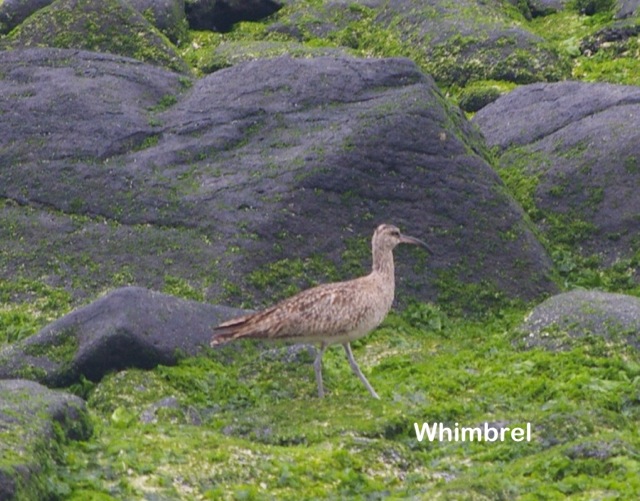
Workaround annotation with Photogene
I also bought a copy of Photogene, a simple photo editing application I saw on the demo iPads at the Apple Store. This gave me the ability to crop and adjust lighting on photos as well as to add text (and even dialogue bubbles) to photos.
Being able to view photos and save a backup copy on my iPad were certainly nice. But what I was hoping to do was to organize photos and apply titles to them, while the events and species we saw were still fresh in my head. I could find no way to do this with the native photo application. With Photogene, I could add text (on the photo itself) to a copy of the photo, but it would have been time consuming, is not able to be indexed, and creates duplicates of the annotated photos. The Photogene FAQ explains that this is due to a restriction imposed on their application by Apple:
Sadly, the iPad operating system does not support altering the content of albums.
This makes it seem that there will be no application that would allow the organization and annotation of photos in the way I had envisioned. Unfortunately, this supports my early perception of the iPad as more of a content consumption device.
Journal
I also wanted to create a trip journal. While the iPad could probably do this with the native “Notes” application on the iPad, Apple’s word processor, Pages, seemed like it would be much more satisfactory, so we invested in a copy.
Pages is quite a satisfactory word processor for this sort of device. It was easy to compose an attractive document with embedded pictures that I could view on-screen or export to Microsoft Word. When we got a WiFi connection at the hotel at Quito, it was easy to email a copy of the journal to myself so I wouldn’t lose everything if something happened to the iPad.
The keyboard on the iPad became more natural to use with time, but this made it easy to forget that simultaneous automatic spelling correction was happening as I typed. This produced some unusual results; rather than having typos that looked obviously misspelled, it replaced the typos with other words. My wife discovered quite a few of these when she read my blog entries prior to posting.
When we got home, it was fairly straightforward to cut and paste the text into WordPress. For whatever reason, I ended up having to do this as a two-step process on my Linux machine: Copy the text from OpenOffice Writer into a plain text editor and then from the editor into the WordPress website. This might have been simpler if I had done it on my Mac or using different applications, but without the intermediate step it seemed to confuse the formatting on WordPress. I did have to reapply any formatting (such as italicizing the ship’s name) manually. Not a major inconvenience, however.
In-Flight Entertainment
We rented a couple of movies from iTunes before we left on the trip, just in case we didn’t like what was offered on the plane. This was of course very straightforward on the iPad; movies appear crisp and clear. All three of us watched one of the movies in-flight using a three-way headphone splitter. This provided plenty of volume for all of us, but two of us who had Apple earbuds with the fourth contact for the microphone and remote control had to fiddle with the splitter a bit to get the audio to sound right. Pulling the connector out ever so slightly did the trick.
Viewing the screen wasn’t a problem for the three of us, although there were some issues with reflections off the shiny screen surface. Closing the airplane’s window shades helped considerably.
While the experience was good, I find the Apple movie licensing model to be over-restrictive. When a movie is rented, it expires either 30 days from the date of rental, or 24 hours from when viewing starts, whichever happens first. I don’t understand what problem they’re solving with the 30-day restriction. You would think that allowing people to rent movies for longer periods would drive both more rentals by encouraging rentals on speculation. It might even possibly drive the sale of larger devices to hold all that content (these movies aren’t small, especially on an iPad or other mobile device).
Dealing with Contingencies
Just in case, I wanted to have basic connectivity to my office and to my home server. I bought a copy of iSSH for that purpose. I used it a bit, and it’s not a great terminal but it gets the job done. I suspect if I had used it more, I would have figured out how to use it more effectively. One thing that it does that I haven’t seen elsewhere is to make the keyboard translucent, so that it’s possible to see the entire screen even though part of it is covered by the keyboard. A novel concept, and it worked surprisingly well although it would have been better if I had translucent fingers!
Summary
The iPad met our needs well while on the trip, with the exception of the bit of disappointment on organizing and annotating photos. I have no regrets about bringing the iPad instead of a Mac laptop on the trip; it was lighter, easier to manage, and there was less to lose.
I didn’t say much about email. With the exception of mailing the journal to myself, I used my iPhone for email, and my wife used her iPod Touch. These are devices that we have already set up for email, and we didn’t want to spend too much of our trip doing email anyway.
If anyone has suggestions on how to solve the photo organization problem, I’d be happy to hear them!
 Altmode